Set up your workspace
and keep it
running smoothly
A practical guide for workspace Owners and Admins. Configure the workspace, manage who's in it and what they can do, connect your integrations, and issue the access keys your tools need — all from one place.
Configure
Set the workspace plan, timezone, and onboarding.
People
Invite users and shape what each role can do.
Connect
Wire in Slack, Jira, Vanta, identity, and more.
Access
Issue and revoke API, MCP, and SDK tokens.
This guide is for the people who own the workspace — setting it up, deciding who gets in and what they can touch, connecting the tools your team relies on, and handing out the keys your automation needs.
Read it in any order. The Agent can do many admin tasks for you, within whatever permissions you've been granted.
Heads up on permissions. Most of what's here needs admin-level access — managing the workspace, users, or integrations. Owners and Admins have it by default; if you've built custom roles, they'll need those permissions granted explicitly.
Workspace settings
Open Workspace settings from the switcher in the top-left, or the user menu. Everything is organized into cards — here's what each one controls.
- Workspace planYour plan tier, how many vendors you're using against your limit, and any trial countdown. Trial upgrades start here too.
- PreferencesSet a workspace-wide display timezone, or leave it on browser default so each person sees their own local time.
- Onboarding flowShape how new vendors come in, from screening through to approval.
- Vendor configurationQuick links to your workspace-wide onboarding approvers and third-party Slack notifications.
A note on plan & region
The plan card shows your workspace name, plan badge, vendor usage, and trial status at a glance. Your data hosting region is set when Ethira provisions your workspace — it isn't changed from this page, so reach out to Ethira support if you need to confirm or update residency details.
Faster onboarding, optionally
When eager onboarding is on, you can let Ethira auto-accept high-confidence questionnaire answers — the agent's answers above a confidence threshold are accepted for you, and you can still review any of them by hand. Changing onboarding modes only affects new vendors; anyone mid-onboarding keeps their current path.
Contributing to the shared catalogue
With eager onboarding on, you can opt in to contribute anonymized vendor research to a shared catalogue that speeds onboarding for everyone. Only public-about-the-vendor facts are shared — certifications, data residency, corporate identifiers, subprocessors — never your workspace's own data like contracts, risk scores, or approvers, and your workspace is never identified. Turning it off stops new contributions right away.
What you can turn on
Some capabilities you flip yourself; others the Ethira team enables for your workspace. Knowing which is which saves a support ticket.
- Access Review — switch it on under Feature flags to add it to the nav. It's beta and safe to turn off; your data is kept.
- DORA — branches, functions, and the Register of Information.
- Eager onboarding — single-pass vendor onboarding.
- System Functions — functions on individual systems.
- Connected MCP servers — external tools for the Agent.
- And more — RoI auto-fix, function approvals, document sync.
Self-serve flags live under Workspace settings → Feature flags and every flip is recorded in the activity log. For anything on the right, your Ethira account team can switch it on — once active, it appears in your workspace and unlocks the matching screens.
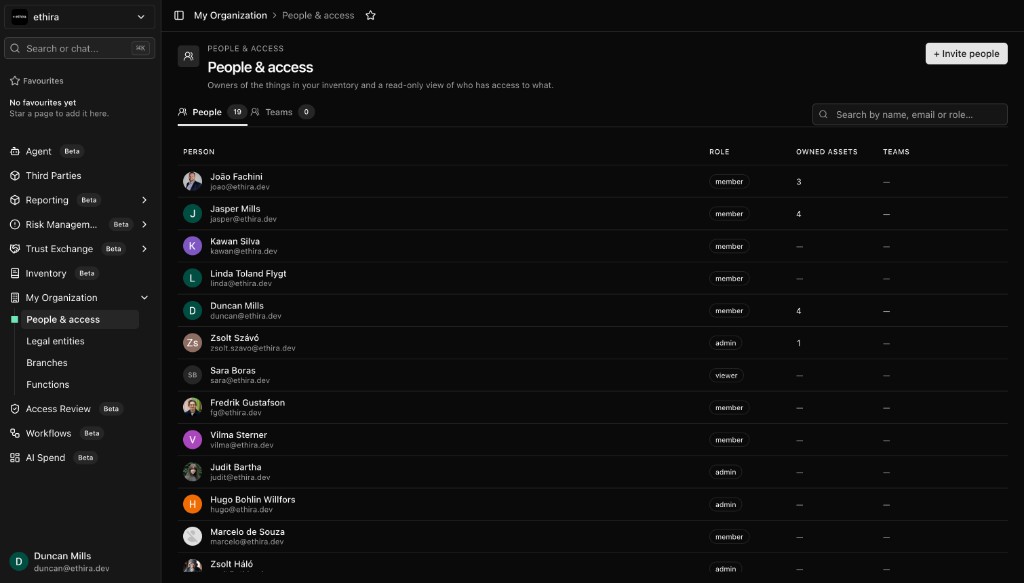
Users & invites
Manage who belongs to the workspace from the switcher → Users, where you'll see every member with their roles.
- Click Invite, enter one or more emails, and pick a role — Viewer, Member, Admin, or a custom one.
- Send it; people join through an email link.
- Select several users at once to manage their roles in bulk, or click any row to fine-tune one person's permissions.
To save inviting people one by one, add your allowed email domains — anyone with a matching address can join without a personal invite, which is handy for rolling Ethira out across a whole team.
Onboarding approvers
Designate the people who are automatically added to every vendor approval under Third Parties → Settings → Onboarding Approvers (also linked from your workspace settings). One-off approvers for a single vendor are added during that vendor's approval step and don't change this global list.
Roles & permissions
Beyond the three built-in roles, you can create custom permission groups with fine-grained control over what each person can see and do.
The starting points everyone gets:
From the switcher → Roles, create a role with a name and a permission matrix — choosing view, edit, create, or delete for each kind of resource. Open any role to adjust its permissions or see who has it.
Sensitive by default. Some resources — like assessments and DPIAs — stay hidden from Members and Viewers unless you grant them explicitly. A broad "view everything" permission deliberately doesn't sweep these in, so private work stays private until you decide otherwise.
SSO & provisioning
For enterprise identity, connect Ethira to your own provider so sign-in and user management run through systems you already control.
- SAML sign-onLet your team sign in through your identity provider — no separate Ethira password to manage.
- SCIM provisioningAutomatically create, update, and deactivate Ethira users as people join, move, and leave in your directory.
Set both up under Settings → SAML and Settings → SCIM, and test each connection before you roll it out across the organization. Enterprise identity applies to your main workspace.
There's also a referral program in the switcher if you'd like to share Ethira with other organizations and track the benefits.
Integrations
Connect the tools your team already uses under Settings → Integrations. The ones admins reach for most:
- SlackNotifications, Agent posting, and discovered-vendor alerts.
- Jira & LinearMitigation tracking, with status sync from Jira.
- VantaCompliance posture and vendor discovery.
- WordsmithThe DPA and policy review pipeline for legal.
- Google Drive & Microsoft 365Browse and import documents without re-uploading.
- Google CalendarSync compliance events and review dates.
There are also cost-monitoring connections for Cursor and Claude to track your team's AI usage, and organization-level directory sync (like Google Workspace for people data) under My Organization → Integrations. Tip: press ⌘K or Ctrl K and type an integration's name to jump straight to it.
Programmatic access
When your team automates against Ethira, you control the keys. There are three kinds, each for a different job — and all scoped to least privilege.
- API keysFor scripts, CI/CD, and the CLI. Create them under Settings → API Keys with an optional role, and copy the token when it's shown — it appears only once.
- MCP tokensSo external AI clients like Claude, Cursor, or VS Code can connect into Ethira. Generate one under Settings → MCP Server and follow your client's setup.
- SDK ingest tokensFor streaming telemetry from a specific AI agent. Register the agent first, then issue a token scoped to that one agent.
Two things worth knowing. API and MCP keys belong to the workspace, not the person who made them — so they keep working if that person leaves, and you disable any key from the same page. And a key can only ever do what its creator could: to widen what a token reaches, grant the creating user more permission, or mint it from someone who already has it.
You can always check exactly what an MCP token can do with List available tools — write actions like creating or deleting records require explicit write permission, so if a tool's missing, the role behind the token needs widening.
Get help & what's next
The Agent can handle admin tasks you're permitted to run — it's often faster than the screens. A few prompts that fit:
For background jobs, scheduled workflows, and CLI detail, the IT & platform guide goes deeper — and day-to-day product help lives in the platform basics guide.
Your workspace is in good hands
Configure it once, give everyone the right level of access, connect what you run, and hand out keys with confidence — Ethira keeps the record of every change.